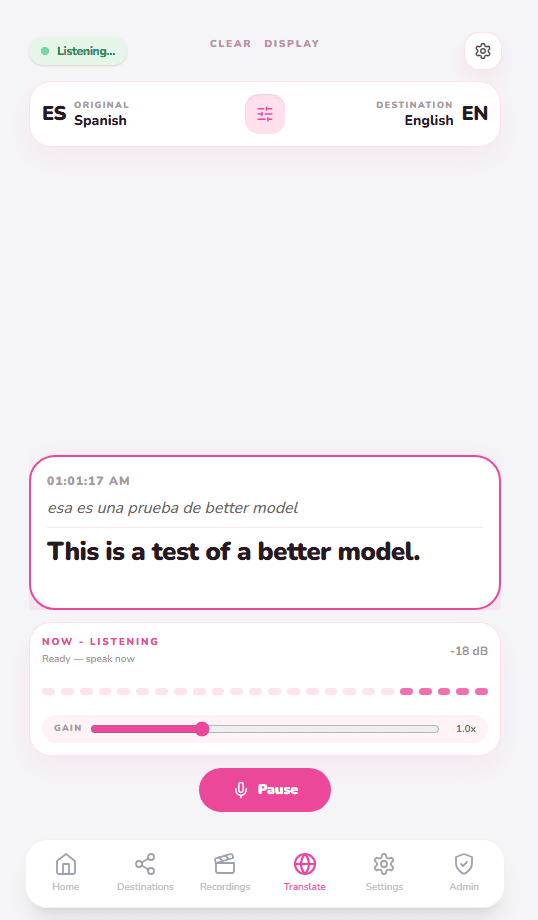
How to use the Live Translator with OBS
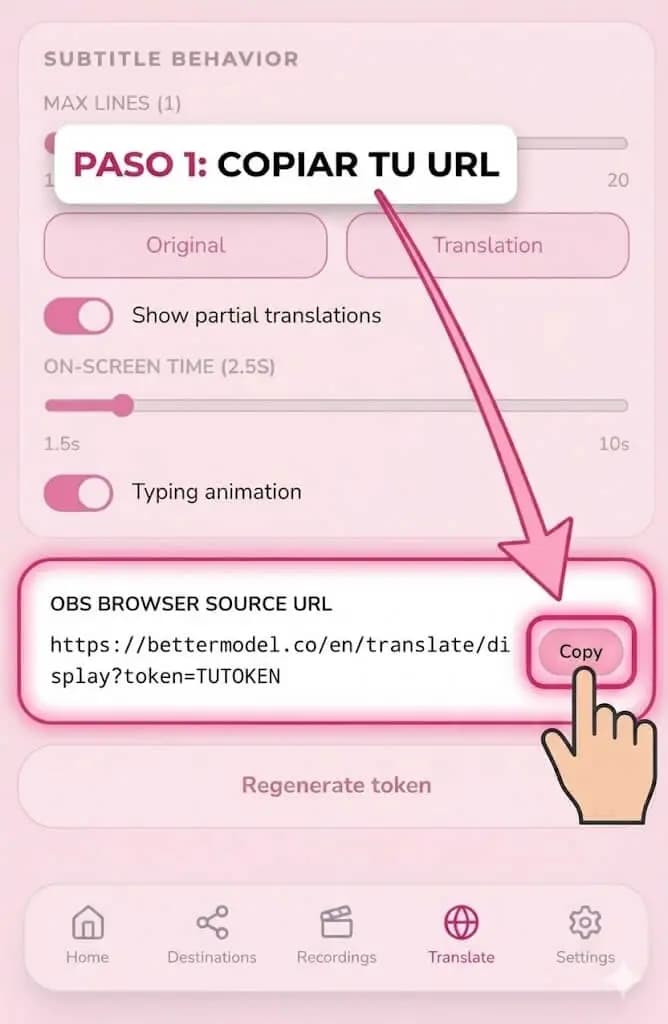
11. Copy your Display URL
Go to the 'Settings' section within the Translate menu. At the bottom you will find your 'OBS Browser Source URL'. Click 'Copy'.
22. Add a Browser Source in OBS
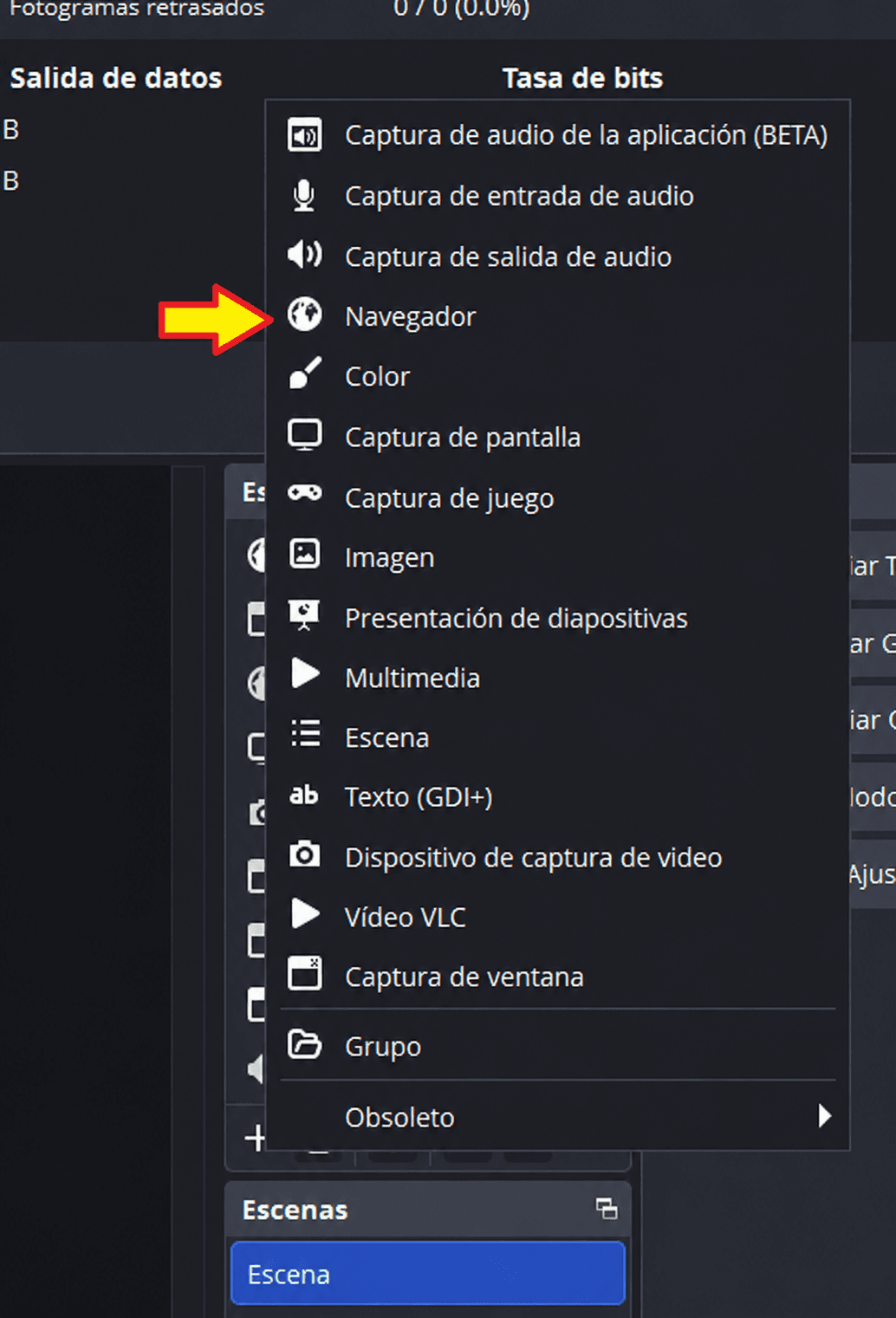
Open OBS Studio, go to the 'Sources' section, click the '+' button and select 'Browser'. Give it a name like 'BetterModel Translator'.
33. Configure the Source
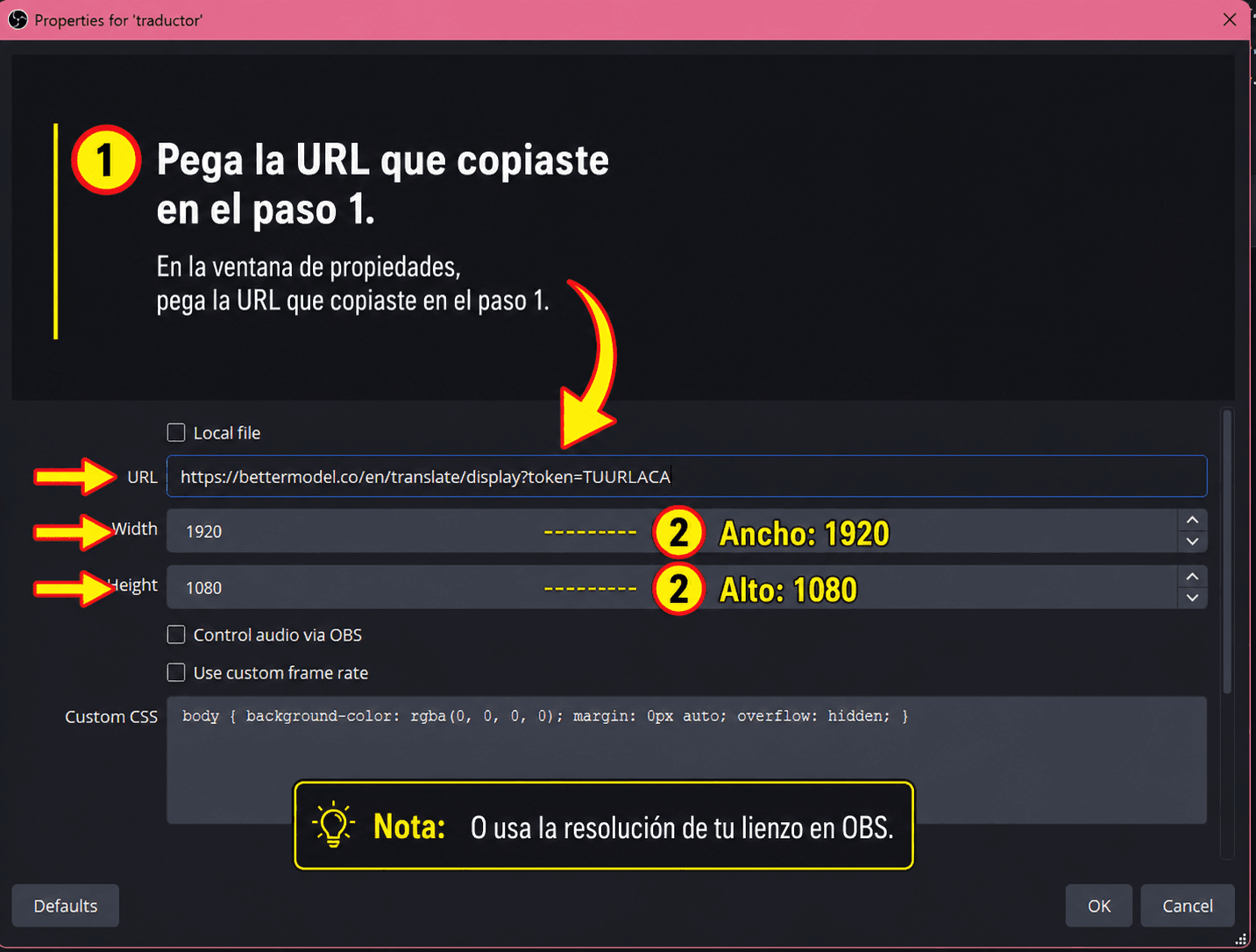
In the properties window, paste the URL you copied in step 1. Set Width to 1920 and Height to 1080 (or your OBS canvas resolution).
44. Adjust and start speaking
The source is transparent by default (unless you set a background color). Go to the 'Mic' section in BetterModel, click 'Listen' and start speaking. You'll see subtitles magically appear on your stream!